शिक्षकों के लिए PDF टूल्स: कोर्स सामग्री को मर्ज, कंप्रेस और शेयर करें (PDF Tools for Teachers: Merge, Compress, and Share Course Materials in Hindi ) (Guide, Teachers, Education, PDF Tools, Workflows in Hindi ) (Teachers create and distribute more PDFs than almost any other profession — worksheets, syllabi, handouts, presentations, and reports. Here’s how to merge, compress, convert, and share course materials without fighting your LMS or blowing your budget. in Hindi ) (Teachers create and distribute more PDFs than almost any other profession — worksheets, syllabi, handouts, presentations, and reports. Here’s how to mer... in Hindi ) (You probably didn't go into teaching because you love wrestling with file formats. But here you are, Sunday night, trying to upload a 47-page course packet to Canvas and hitting a file size wall. Or emailing a syllabus to 150 students and watching it bounce back because the attachment is too large. Or spending 20 minutes merging six worksheets into one handout because your school doesn't have an Adobe Acrobat license. Teachers create and distribute more PDFs than almost any other profession. Worksheets. Syllabi. Lesson plans. Handouts. Slide decks converted for student access. Report cards. Permission slips. Recommendation letters. IEP documents. Assessment rubrics. The list doesn't stop. And yet, the tools available to handle all those documents are often expensive, confusing, or locked behind institutional IT departments that move at glacial speed. The average teacher already spends $895 out of pocket each year on classroom supplies — a number that has increased 49% since 2015 — and spending money on PDF software rarely feels like a priority when you need markers, notebooks, and snacks for kids who came to school hungry. This guide maps every common PDF task in a teacher's workflow to practical solutions. Whether you're a K-12 teacher managing 30 students, a college professor coordinating multiple sections, or an instructional designer building online courses, there's a workflow here that will save you time. 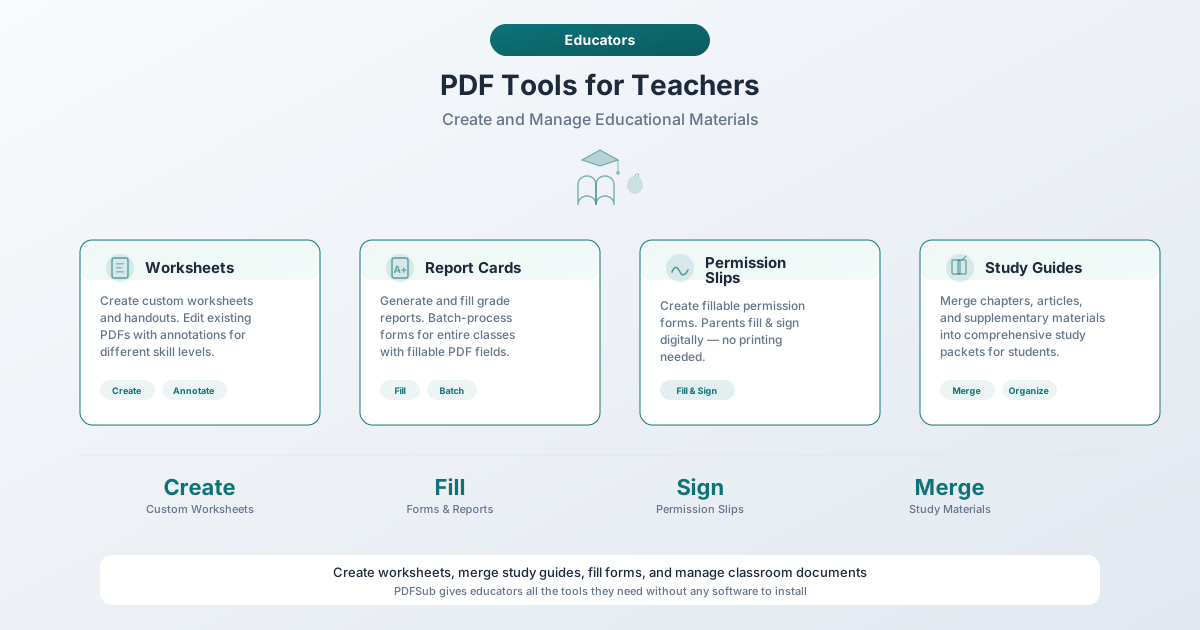 --- in Hindi ) (## The Hidden PDF Problem in Education Think about your last week of teaching. How many of these did you do? - Printed worksheets from a PDF - Emailed a document to students or parents - Uploaded files to your learning management system - Converted a PowerPoint to PDF so students could view it on any device - Signed a permission slip, evaluation form, or administrative document - Scanned a page from a textbook or workbook - Combined multiple files into a single handout If you checked more than two, you're spending meaningful hours each week on PDF management — time that could go toward lesson planning, grading, or the rare luxury of not working. Most schools provide Google Workspace or Microsoft 365, which handle document creation well but fall short when you need to merge PDFs, compress large files, fill forms, or make scanned pages searchable. The gap drives many educators to cobble together workflows from random free websites — uploading sensitive student documents to unknown servers in the process. There's a better way. Let's walk through the six PDF tasks teachers do most, with practical solutions for each. --- in Hindi ) (## 1. Merge: Combine Handouts into Student Packets ### The Problem Monday's lesson requires a reading passage, a vocabulary worksheet, a graphic organizer, and a homework assignment. Each exists as a separate file. You could print them individually — four trips to the copier, four chances for the stapler to jam — or you could combine them into a single PDF that students access digitally or you print as one packet. Course packets are one of the most common teacher PDF tasks, and they come in several flavors: - **Weekly packets** — combining that week's readings, worksheets, and assignments - **Unit materials** — all resources for a multi-week unit in one document - **Semester syllabi** — merging the syllabus, course schedule, grading policies, academic integrity statement, and accommodation information into one comprehensive document - **Exam review packets** — compiling study guides, practice problems, and key concept summaries from across multiple units - **Sub plans** — assembling everything a substitute teacher needs into one organized file ### The Solution PDFSub's [Merge PDFs](/tools/merge) tool lets you drag and drop multiple PDF files, reorder them however you want, and combine them into a single document. Everything happens in your browser — your files stay on your device. **A practical workflow for weekly packets:** 1. Save each worksheet, reading, and assignment as a separate PDF 2. Open the Merge tool and drop all files in 3. Drag to reorder — put the instructions first, then readings, then the worksheet 4. Merge and download the combined PDF 5. Upload the single file to your LMS or print double-sided This is especially useful at the start of a semester. Instead of uploading 8 separate policy documents to your course page, merge the syllabus, schedule, grading rubric, late work policy, academic integrity statement, office hours, technology requirements, and accessibility statement into one "Course Information" PDF. Students get one file to download and reference all semester. ### Time Savings Merging 5-8 documents manually (opening each, printing to PDF, rearranging) typically takes 10-15 minutes. A dedicated merge tool does it in under 60 seconds. --- in Hindi ) (## 2. Compress: Shrink Files for LMS Uploads and Email ### The Problem Every learning management system has file size limits, and teachers hit them constantly. Here are the practical constraints you're working within: | Platform | Upload Limit | Notes | |----------|-------------|-------| | **Canvas** | 500 MB per file | Institutional quotas may be lower; student video submissions often capped at 500 MB | | **Blackboard** | 500 MB default | Administrators can configure lower limits; many institutions set 100-250 MB | | **Google Classroom** | Drive storage dependent | No per-file limit, but school Google Workspace accounts have pooled storage caps | | **Moodle** | 16 MB default | Can be configured up to 1 GB, but many schools leave the default in place | | **Email attachments** | 10-25 MB | Gmail caps at 25 MB; Outlook at 20 MB; many school email systems at 10 MB | The most common offenders are scanned documents — a flatbed scan of 10 pages at 300 DPI can easily produce a 40-50 MB PDF. PowerPoint presentations with embedded images often exceed 20 MB. And merged packets add up fast. Moodle's 16 MB default catches teachers off guard more than any other limit. ### The Solution PDFSub's [Compress PDF](/tools/compress) tool reduces file size while keeping the document readable. You can choose the compression level based on your needs — light compression for documents that need to stay crisp, or heavy compression for files that just need to be small enough to upload. **When to compress:** - Before uploading scanned materials to any LMS - Before emailing documents to parents or students - After merging multiple files into a large packet - When sharing via Google Drive and storage is tight - Before attaching files to assignment submissions in Google Classroom **Practical tip:** Compress after merging. If you combine six worksheets into a 35 MB packet, run it through compression to bring it down to 5-8 MB before uploading to your LMS. Most text-based PDFs compress dramatically — a 35 MB scan-heavy document can often drop to under 5 MB with minimal quality loss. --- 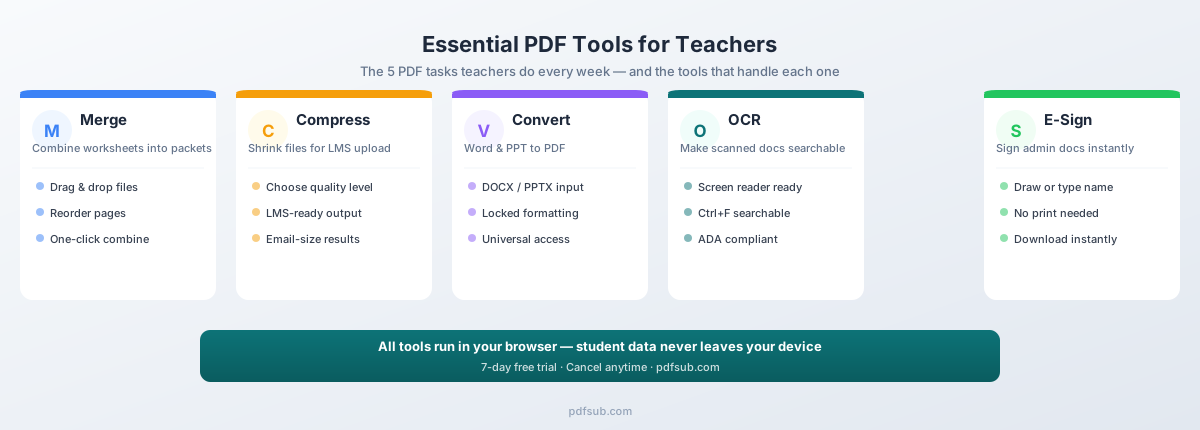 in Hindi ) (## 3. Convert: Turn Presentations and Documents into Universal PDFs ### The Problem You created a lesson in PowerPoint. Or a worksheet in Word. Now you need students to view it without messing up the formatting — no shifted images, no broken tables, no "I can't open this file" emails from parents. PDF is the universal read-only format: formatting stays intact, students can't accidentally edit, and it works on Chromebooks, iPads, phones, and the ancient desktop in the computer lab. ### The Solution - **Word to PDF** — PDFSub's [Word to PDF](/tools/word-to-pdf) converter handles DOC and DOCX files, preserving tables, images, and formatting - **PowerPoint to PDF** — The [PowerPoint to PDF](/tools/powerpoint-to-pdf) converter turns slide decks into flat PDFs that students can view and print without needing PowerPoint - **PDF to Word** — When you need to edit a PDF worksheet, modify a colleague's handout, or update last year's syllabus — PDFSub's [PDF to Word](/tools/pdf-to-word) converter creates an editable DOCX file **The best workflow:** Build materials in Word or PowerPoint (easy to edit), convert to PDF for distribution (locked formatting), upload to your LMS, and keep the original for future editing. --- in Hindi ) (## 4. Fill Forms: Create and Complete Digital Worksheets ### The Problem The pandemic accelerated a shift that was already underway: students completing work digitally. But most teacher-created worksheets are flat PDFs — students can view them but can't type answers into them. The workaround? Students print the PDF, write answers by hand, take a photo with their phone, and upload the photo. The result is a blurry, sideways image that's painful to grade. Fillable PDF forms solve this. Students open the PDF, type directly into designated fields, and submit a clean, legible document. No printing, no photos, no squinting at handwriting. Beyond student worksheets, teachers encounter fillable forms in their administrative work constantly: - District evaluation forms - Professional development logs - Budget request forms - Field trip permission slips - Student accommodation plans - Grant applications ### The Solution PDFSub's [PDF Form Filler](/tools/pdf-form-filler) detects interactive form fields in existing PDFs and lets you fill them directly in your browser. Professional development logs, evaluation paperwork, budget requests, permission slips, recommendation templates, HR forms — complete and save them without printing a single page. **Tip for creating fillable worksheets:** Design worksheets in Word or Google Docs with form fields (text input boxes) where you want student answers. When converted to PDF, these fields become interactive — students click and type directly into the document. --- in Hindi ) (## 5. E-Sign: Sign Administrative Documents Without Printing ### The Problem Teachers sign a staggering number of documents each year. Recommendation letters for students applying to college. Administrative evaluations. Professional development certificates. Parent communication logs. Field trip approvals. Contract renewals. IEP documents. The traditional workflow: receive a PDF by email, print it, sign it with a pen, scan it back to PDF, email it back. Four steps and a trip to the copier for what should take 10 seconds. ### The Solution PDFSub's [E-Sign PDF](/tools/e-sign) tool lets you add your signature to any PDF directly in your browser. Draw your signature with a mouse or trackpad, type it, or upload an image of your signature. Place it on the document, adjust the size, and download the signed PDF. This covers recommendation letters (especially during fall rush when you might have 20-30 to sign), administrative evaluations, professional development documentation, parent communication forms, and employment contracts. **Time savings during recommendation season:** A teacher writing 25 recommendation letters saves over an hour by signing digitally instead of printing, signing, scanning, and re-uploading each one. --- in Hindi ) (## 6. OCR: Make Scanned Materials Searchable and Accessible ### The Problem Every teacher has done it: photocopied a page from a textbook, a chapter from a supplementary resource, or a worksheet from a colleague. The result is a scanned PDF — it looks like text, but it's actually an image. You can't search it, select text from it, or have a screen reader read it aloud. This matters for two reasons. First, it's inconvenient — students can't use Ctrl+F to find a term, can't copy a quote for their essay, and can't resize the text on a small screen. Second, and more importantly, it's an accessibility problem. ### The Solution PDFSub's [OCR - Extract Text](/tools/ocr) tool converts scanned PDFs into searchable, selectable text. The original visual layout is preserved, but a text layer is added underneath that makes the content machine-readable. **When teachers need OCR:** - **Scanned textbook pages** — Make them searchable so students can find specific passages - **Photocopied worksheets** — Convert image-based copies into text that screen readers can process - **Historical documents** — Make primary source materials accessible for student research - **Handwritten notes** — PDFSub's [Handwritten Conversion](/tools/handwritten-conversion) tool can convert handwritten notes into editable digital text - **Archived materials** — Digitize file cabinets of old worksheets and lesson plans into searchable documents --- in Hindi )
अभिगम्यता: यह क्यों मायने रखता है और कानून क्या आवश्यक है
यह अनुभाग वैकल्पिक पठन के लिए नहीं है। यदि आप किसी सरकारी स्कूल या संघीय धन प्राप्त करने वाली किसी भी संस्था में काम करते हैं, तो अभिगम्यता एक कानूनी आवश्यकता है — और प्रवर्तन परिदृश्य सख्त होता जा रहा है।
कानूनी ढाँचा
पुनर्वास अधिनियम की धारा 508 और ADA के शीर्षक II के अनुसार संघीय वित्त पोषित संस्थानों — जिनमें सरकारी स्कूल भी शामिल हैं — में डिजिटल सामग्री विकलांग लोगों के लिए सुलभ होनी चाहिए। शिक्षा विभाग के नागरिक अधिकार कार्यालय ने पहले ही दुर्गम डिजिटल दस्तावेजों के लिए जिलों (सिएटल पब्लिक स्कूल और वर्जीनिया के आर्लिंगटन पब्लिक स्कूल सहित) की सक्रिय रूप से जांच की है।
अनुपालन की समय सीमा वास्तविक है: 50,000+ निवासियों वाले काउंटियों में K-12 स्कूलों को 24 अप्रैल, 2026 तक अद्यतन डिजिटल अभिगम्यता मानकों को पूरा करना होगा। छोटे जिलों के पास 24 अप्रैल, 2027 तक का समय है।
सुलभ PDF के लिए क्या आवश्यक है
WCAG 2.1 लेवल AA मानकों को पूरा करने का मतलब है कि आपकी PDF में खोजने योग्य टेक्स्ट (केवल छवि-आधारित स्कैन नहीं), तार्किक पठन क्रम, छवियों पर वैकल्पिक टेक्स्ट, पर्याप्त रंग कंट्रास्ट, उचित हेडिंग पदानुक्रम (H1, H2, H3 — केवल बोल्ड टेक्स्ट नहीं), पहचानी गई तालिका हेडर और दस्तावेज़ गुणों में भाषा पहचान की आवश्यकता है।
तीन व्यावहारिक कदम
आपको रातोंरात अभिगम्यता विशेषज्ञ बनने की आवश्यकता नहीं है। ये तीन क्रियाएं सबसे आम समस्याओं का समाधान करती हैं:
-
सभी स्कैन की गई चीज़ों पर OCR चलाएँ। स्कैन किए गए दस्तावेज़ छवियां हैं, टेक्स्ट नहीं — स्क्रीन रीडर उन्हें संसाधित नहीं कर सकते। PDFSub का OCR टूल और खोज योग्य बनाएँ टूल एक चरण में इसे ठीक करते हैं।
-
बोल्ड टेक्स्ट के बजाय हेडिंग शैलियों का उपयोग करें। Word या Google Docs में अंतर्निहित हेडिंग 1, 2, 3 शैलियाँ संरचनात्मक पदानुक्रम बनाती हैं जिस पर स्क्रीन रीडर नेविगेट करते हैं। बोल्ड टेक्स्ट जो हेडिंग जैसा दिखता है वह शून्य संरचनात्मक जानकारी प्रदान करता है।
-
छवियों में ऑल्ट टेक्स्ट जोड़ें। PDF में बदलने से पहले, छवियों पर राइट-क्लिक करें और विवरण जोड़ें। एक चार्ट स्क्रीन रीडर के लिए अर्थहीन है जब तक कि आप यह वर्णन न करें कि यह क्या दिखाता है।
LMS अपलोड सर्वोत्तम अभ्यास
हर LMS की अपनी विचित्रताएँ होती हैं। यहाँ चार सबसे सामान्य प्लेटफार्मों के लिए आवश्यक बातें दी गई हैं।
- कैनवस — प्रति फ़ाइल 500 MB तक की अनुमति देता है, लेकिन संस्थागत भंडारण कोटा कम हो सकता है। कैनवस में रिच कंटेंट के लिए एक अंतर्निहित अभिगम्यता चेकर है, लेकिन यह अपलोड की गई PDF को स्कैन नहीं करता है — अपलोड करने से पहले उन्हें सुलभ बनाएँ। प्रत्येक सप्ताह के लिए मॉड्यूल बनाएँ ताकि छात्र सामग्री को क्रम में देख सकें।
- ब्लैकबोर्ड — डिफ़ॉल्ट सीमा 500 MB है, लेकिन कई संस्थान 100-250 MB की सीमा निर्धारित करते हैं। बैच अपलोड का समर्थन करता है, इसलिए आप एक सत्र में एक सप्ताह की सामग्री अपलोड कर सकते हैं। वर्णनात्मक सामग्री क्षेत्र के नाम का उपयोग करें।
- Google Classroom — प्रति फ़ाइल कोई सीमा नहीं है, लेकिन सभी अपलोड Google Drive पर जाते हैं जहाँ स्कूल खातों में संयुक्त भंडारण होता है। PDF वर्कशीट के लिए, "छात्र फ़ाइल देख सकते हैं" का उपयोग करें ("एक प्रति बनाएँ" विकल्प केवल Google Docs के साथ काम करता है)।
- Moodle — डिफ़ॉल्ट अपलोड सीमा केवल 16 MB है, जो किसी भी प्रमुख LMS में सबसे कम है। कई स्कूल इस डिफ़ॉल्ट को बनाए रखते हैं। यदि आप स्कैन की गई सामग्री अपलोड कर रहे हैं, तो आपको लगभग निश्चित रूप से पहले संपीड़ित करने की आवश्यकता होगी।
क्रॉस-प्लेटफ़ॉर्म युक्तियाँ
- फ़ाइलों का वर्णनात्मक नाम रखें।
ENG101_Week3_ReadingPacket.pdfscan2026030201.pdfसे बेहतर है। - अपलोड करने से पहले संपीड़ित करें। अपलोड विफलताओं को ठीक करने से तेज़।
- छात्र दृश्य का परीक्षण करें। हर LMS में एक छात्र पूर्वावलोकन होता है — फ़ाइलों को सही ढंग से खोलने के लिए इसे सत्यापित करने के लिए इसका उपयोग करें।
- मूल रखें। भविष्य में संपादन के लिए स्थानीय रूप से असम्पीडित संस्करण बनाए रखें।